 SlingAgent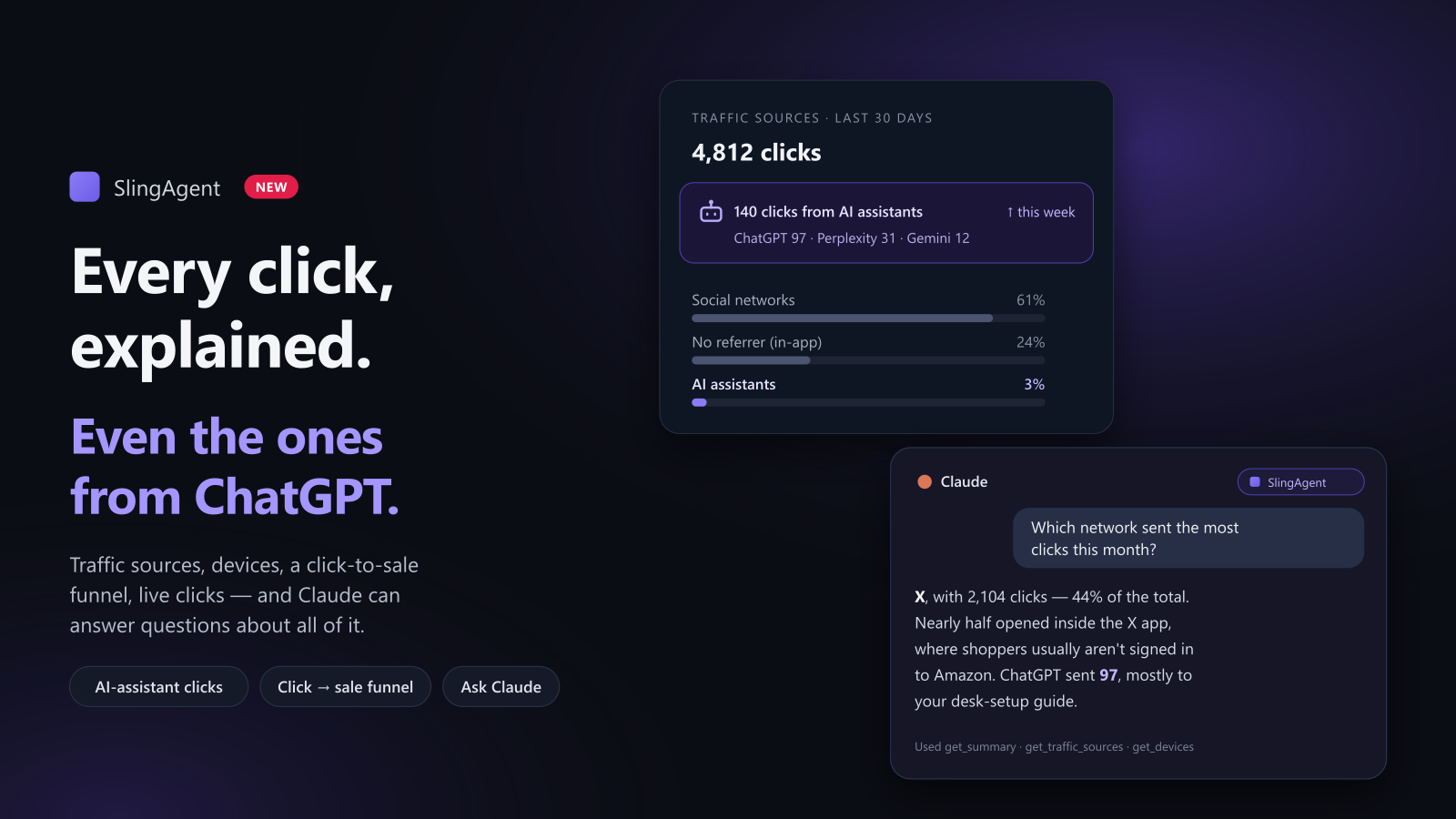
More and more people don't search for a product anymore. They ask ChatGPT, Perplexity or Gemini what to buy, and they click whatever link the answer includes. If one of those links is yours, you'd want to know. Until this week, SlingAgent couldn't tell you.
Now it can, and that turned into a bigger update to SlingAgent's analytics than I planned. Here's what's new.
Clicks from AI assistants
Analytics → Traffic sources sorts every click by where it came from: AI assistants, social networks, search engines, email and newsletters, your bio page, other websites, or nowhere at all.
AI assistants get their own section. You see clicks from ChatGPT, Perplexity, Gemini, Copilot, Claude and others, a weekly trend, and which of your products people reached from an answer. When an assistant starts recommending something of yours, you'll see it here first.
One honest caveat: some assistant apps don't say where a click came from, so those land under "no referrer." Treat the AI number as a minimum.
The same page also answers a question I'd never thought to ask: for links I posted to Threads, where did the clicks actually come from? It turned out about half arrived through Facebook's link wrapper, which Threads and Instagram both use. SlingAgent now counts those correctly.
Real clicks, not bots
Building the device report, I found something I didn't like. About a fifth of the "clicks" on my own account weren't people. They were link-preview robots, monitoring services, scrapers, and fediverse servers fetching every link that passed through them. Mastodon and Bluesky were the most inflated.
SlingAgent now counts a click only when it comes from a real browser on a real device, and the robot hits already recorded are hidden from every report. My own totals dropped by about 20% overnight. That's not a fun number to see, but it's the right one, and the numbers you see now are people.
What people click on
Analytics → Devices & browsers shows phone versus desktop, which browser, and the one that matters most for affiliate links: how many clicks open inside an app's own browser.
When someone taps your link inside the X, Instagram or LinkedIn app, it opens in that app's built-in browser, where they usually aren't signed in to Amazon. On my account, nearly half of all clicks from X opened that way. The report breaks it down by network, so you know where a short "tap ⋯ → Open in browser" line is worth adding to your posts.
From click to sale
Analytics → Click → sale funnel puts the whole path on one screen: posts → views → clicks → visitors → earnings, with click-through rate, earnings per click and earnings per post, for each network and each link.
Affiliate networks don't tell SlingAgent about your sales, so earnings are what you log on each link. The funnel lists the links that got clicks but have no earnings logged yet, with a link straight to where you add them.
Live clicks
Analytics → Live clicks lists every click from the last 30 minutes, one by one, with the link, the network, where the click came from, the device and the country — 10, 25 or 50 to a page. It updates every 15 seconds while you're looking. Post something, keep the page open, and watch it work.
Filters on every report
The Analytics page and its reports now share one filter bar: date range, network, link and country. Pick "X, US, last 30 days" and every number on the page follows it — the overview, traffic sources, devices, the funnel, the geography map, live clicks, and the reports underneath: retention, delivery, schedule reliability, engagement, Content DNA, reposts and more.
The filter lives in the page address, so a view can be bookmarked and comes with you as you open one report after another. Each report only offers the filters it can honestly apply: posts don't have a country, so a report about posts won't pretend to filter by one, and earnings are logged per link, so revenue reports don't split by network.
Ask Claude about your analytics (Unlimited)
This is the one I've been using most. On the Unlimited plan you can connect Claude to SlingAgent and ask questions in plain English:
- Which network sent the most clicks this month?
- Did anything come from ChatGPT, and for which products?
- Which links get clicks but never earn?
- What happened in the last half hour?
Claude reads the same numbers you see — summary, links, traffic sources, devices, the funnel, live clicks and recommendations — and answers with them. It's read-only: it can look, but it can't post, schedule or change anything.
Setting it up on claude.ai takes about a minute:
- In Claude, open Settings → Connectors and choose Add custom connector.
- Enter
https://slingagent.com/api/mcp. - Click Connect, then Allow on the SlingAgent page.
You'll find the connection under Settings → API tokens → Connected apps, where you can disconnect it any time. Claude Code and Claude Desktop work too; the setup guide has the details.
Who gets what
Traffic sources, devices, the click → sale funnel, live clicks, filters and bot filtering are on every plan, within your plan's analytics history (7 days on Free, 30 on Starter, a year on Pro and Unlimited). Connecting Claude is part of Unlimited, alongside the Analytics API. Every new account starts with 14 days of Pro, no card needed.